Microsoft Excel Strip Chart

Business data visualization with Excel's powerful charting capabilities

Easy to Use
Business Ready
Widely Used

Microsoft Excel Introduction

Learn about Excel's capabilities for creating business strip charts

What is Microsoft Excel?

Microsoft Excel is a powerful spreadsheet application that provides basic strip chart capabilities through its line chart functionality. While not as sophisticated as specialized tools, it's accessible and widely used for business applications.

Key Features

  • Easy-to-use interface
  • Basic line chart functionality
  • Data import capabilities
  • Chart customization options
  • VBA programming support
  • Integration with Office suite

Main Applications

  • Business reporting
  • Simple data visualization
  • Quick analysis
  • Educational purposes
  • Small-scale projects
  • Financial modeling

Advantages of Using Excel for Strip Charts

Why Excel is a practical choice for business strip chart applications

Universal Accessibility

Excel is available on virtually every business computer, making strip charts accessible to users without technical expertise or additional software installation.

Easy Learning Curve

Most business users are already familiar with Excel, making it easy to create and modify strip charts without extensive training or technical knowledge.

Integrated Data Management

Excel provides seamless integration between data storage, analysis, and visualization, allowing users to work with data and charts in a single environment.

VBA Automation

Excel's VBA (Visual Basic for Applications) allows for automation of strip chart creation, real-time updates, and custom functionality for advanced users.

Easy Sharing

Excel files can be easily shared via email, cloud storage, or collaboration platforms, making strip charts accessible to team members and stakeholders.

Cost Effective

Excel is often already available as part of Microsoft Office subscriptions, making it a cost-effective solution for basic strip chart needs.

Step-by-Step Guide: Creating Strip Charts in Excel

Follow these detailed steps to create strip charts in Microsoft Excel

1

Prepare Your Data
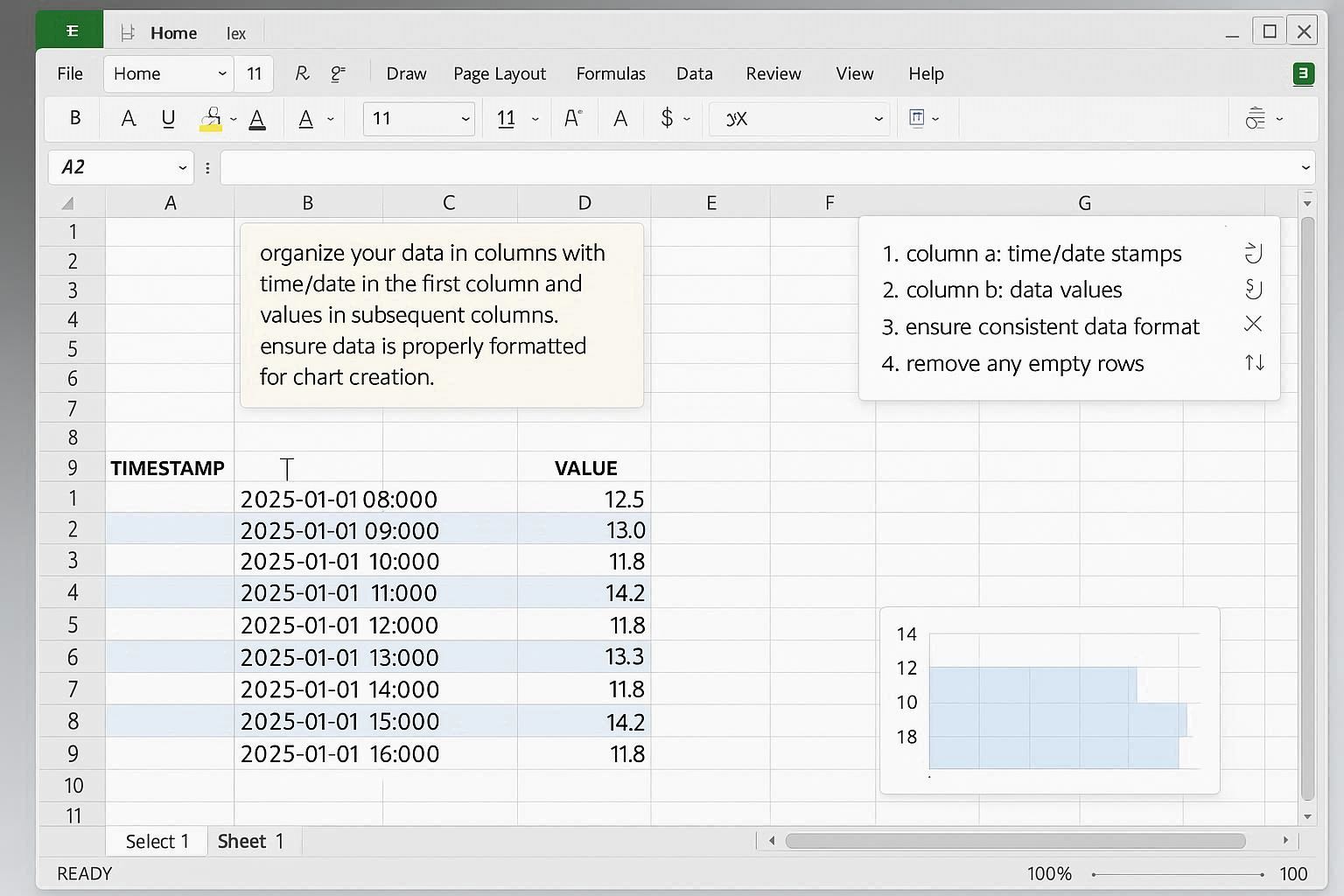
Excel Data Preparation

Organize your data in columns with time/date in the first column and values in subsequent columns. Ensure data is properly formatted for chart creation.

  • Column A: Time/Date stamps
  • Column B: Data values
  • Ensure consistent data format
  • Remove any empty rows
2

Create Line Chart
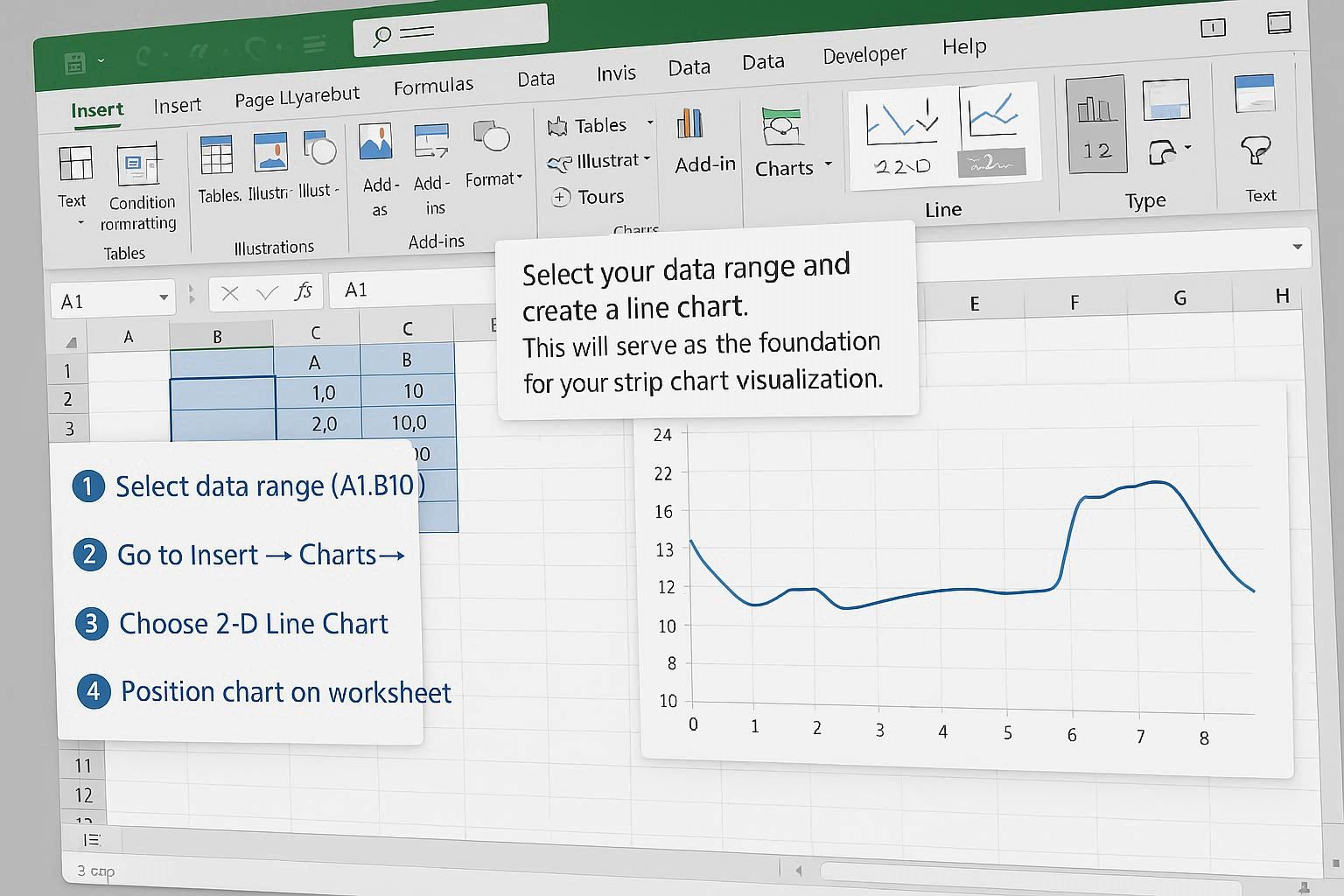
Excel Chart Creation

Select your data range and create a line chart. This will serve as the foundation for your strip chart visualization.

  • Select data range (A1:B100)
  • Go to Insert → Charts → Line Chart
  • Choose 2D Line Chart
  • Position chart on worksheet
3

Configure Chart Properties
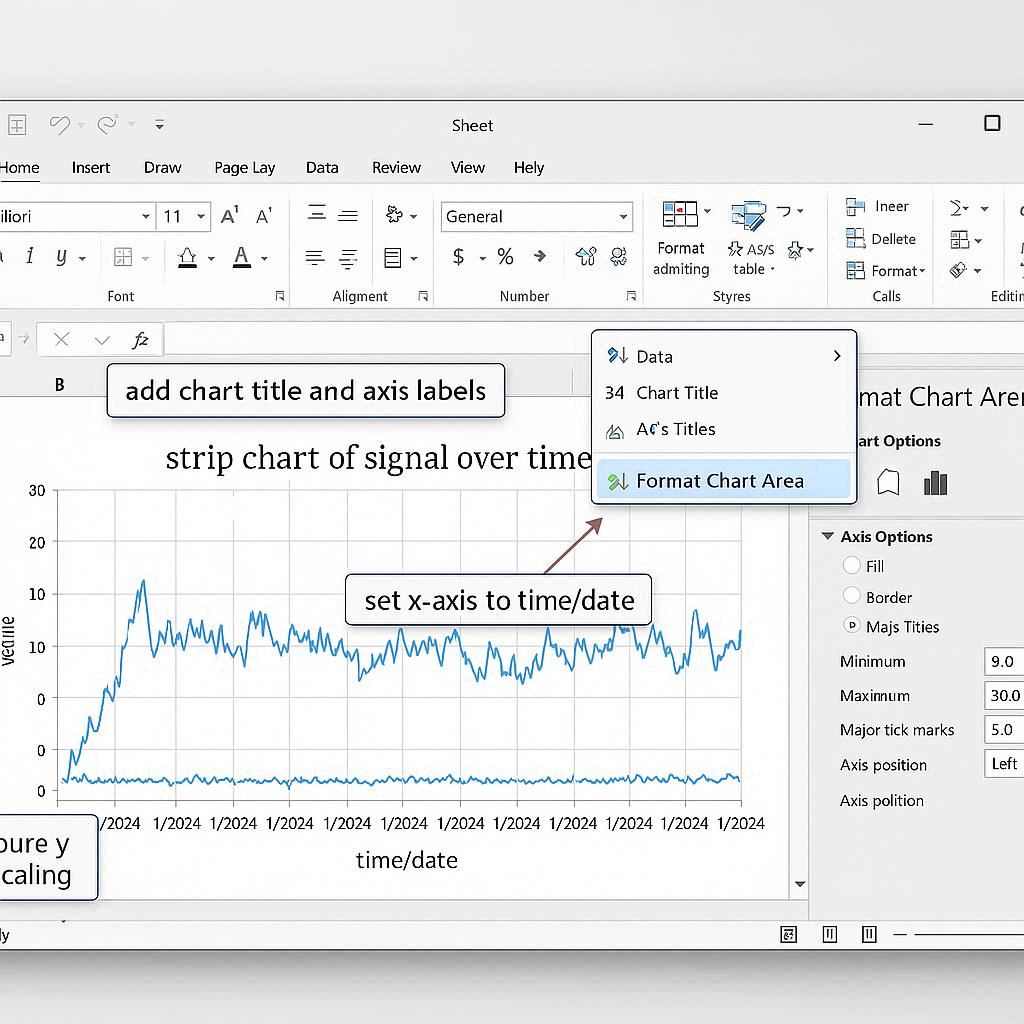
Chart Properties Configuration

Customize the chart appearance, axes, and formatting to create an effective strip chart display.

  • Right-click chart → Format Chart Area
  • Set X-axis to Time/Date
  • Configure Y-axis scaling
  • Add chart title and axis labels
4

Add Real-time Updates (VBA)
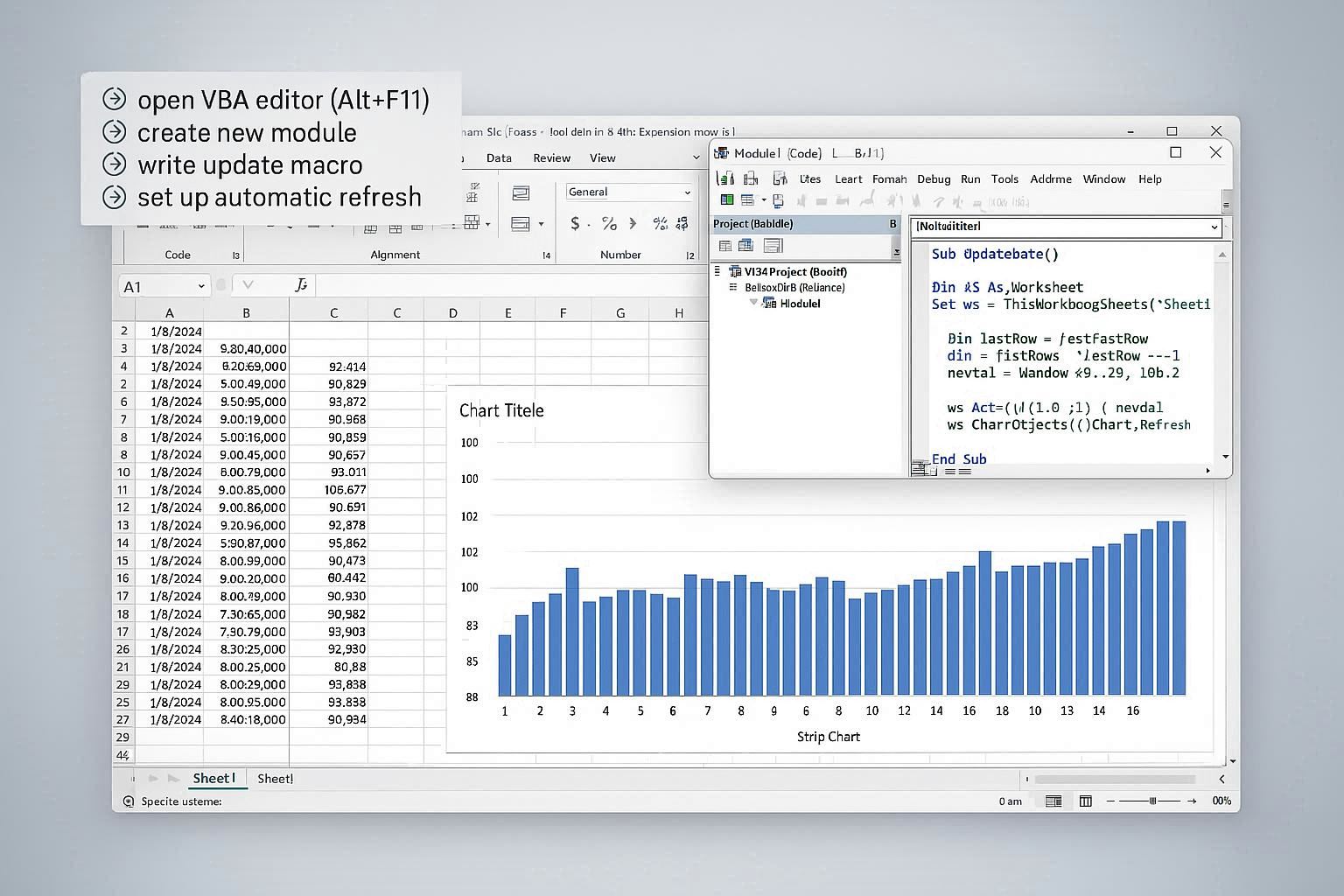
VBA Code Implementation

Use VBA to automate data updates and create a dynamic strip chart that refreshes with new data points.

  • Open VBA Editor (Alt+F11)
  • Create new module
  • Write update macro
  • Set up automatic refresh
5

Enhance with Advanced Features
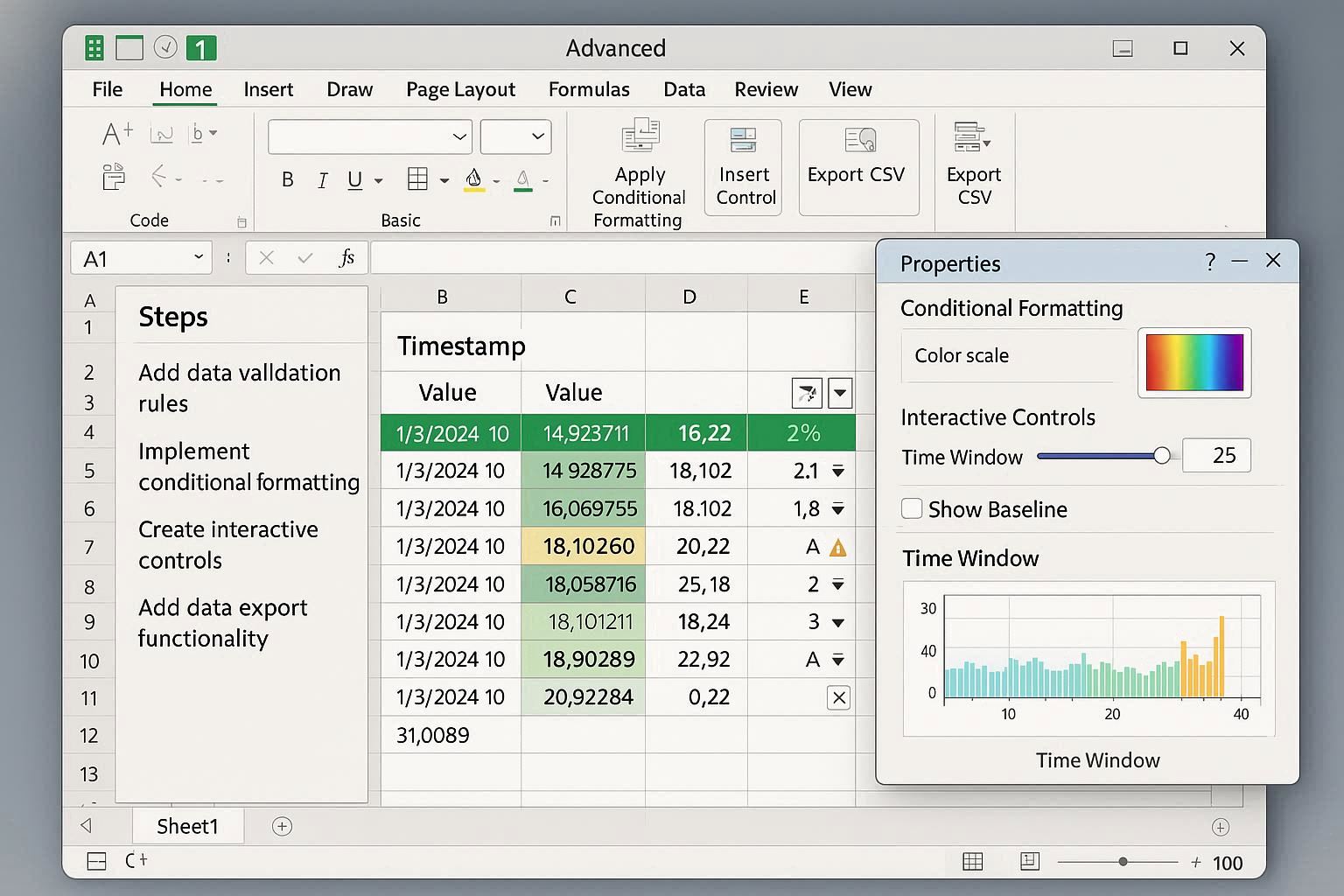
Advanced Excel Features

Add advanced features like data validation, conditional formatting, and interactive controls to create a professional strip chart application.

  • Add data validation rules
  • Implement conditional formatting
  • Create interactive controls
  • Add data export functionality

Excel VBA Code Examples and Applications

Practical VBA code examples and real-world applications for Excel strip charts

Basic Strip Chart VBA Implementation

Sub CreateStripChart()
    Dim ws As Worksheet
    Dim chartObj As ChartObject
    Dim chart As Chart
    
    Set ws = ActiveSheet
    
    ' Create new chart
    Set chartObj = ws.ChartObjects.Add(Left:=100, Top:=100, Width:=600, Height:=400)
    Set chart = chartObj.Chart
    
    ' Configure chart
    With chart
        .ChartType = xlLine
        .SetSourceData ws.Range("A1:B100")
        .HasTitle = True
        .ChartTitle.Text = "Real-time Strip Chart"
        .Axes(xlCategory).HasTitle = True
        .Axes(xlCategory).AxisTitle.Text = "Time"
        .Axes(xlValue).HasTitle = True
        .Axes(xlValue).AxisTitle.Text = "Value"
    End With
    
    ' Set up real-time update
    Application.OnTime Now + TimeValue("00:00:01"), "UpdateStripChart"
End Sub

Sub UpdateStripChart()
    Dim ws As Worksheet
    Dim lastRow As Long
    
    Set ws = ActiveSheet
    lastRow = ws.Cells(ws.Rows.Count, 1).End(xlUp).Row
    
    ' Add new data point
    ws.Cells(lastRow + 1, 1).Value = Now()
    ws.Cells(lastRow + 1, 2).Value = Rnd() * 100
    
    ' Keep only last 100 points
    If lastRow > 100 Then
        ws.Rows(2).Delete
    End If
    
    ' Refresh chart
    ws.ChartObjects(1).Chart.Refresh
    
    ' Schedule next update
    Application.OnTime Now + TimeValue("00:00:01"), "UpdateStripChart"
End Sub

Explanation:

This VBA code creates a basic strip chart that automatically updates every second with new data points. The chart maintains a rolling window of the last 100 data points.

Multi-Channel Strip Chart

Sub CreateMultiChannelStripChart()
    Dim ws As Worksheet
    Dim chartObj As ChartObject
    Dim chart As Chart
    
    Set ws = ActiveSheet
    
    ' Create chart
    Set chartObj = ws.ChartObjects.Add(Left:=100, Top:=100, Width:=800, Height:=500)
    Set chart = chartObj.Chart
    
    ' Configure multi-channel chart
    With chart
        .ChartType = xlLine
        .SetSourceData ws.Range("A1:D100")
        .HasTitle = True
        .ChartTitle.Text = "Multi-Channel Strip Chart"
        
        ' Configure series
        .SeriesCollection(1).Name = "Temperature"
        .SeriesCollection(1).Format.Line.ForeColor.RGB = RGB(255, 0, 0)
        
        .SeriesCollection(2).Name = "Pressure"
        .SeriesCollection(2).Format.Line.ForeColor.RGB = RGB(0, 255, 0)
        
        .SeriesCollection(3).Name = "Flow Rate"
        .SeriesCollection(3).Format.Line.ForeColor.RGB = RGB(0, 0, 255)
        
        ' Add legend
        .HasLegend = True
        .Legend.Position = xlLegendPositionBottom
    End With
End Sub

Sub UpdateMultiChannelData()
    Dim ws As Worksheet
    Dim lastRow As Long
    
    Set ws = ActiveSheet
    lastRow = ws.Cells(ws.Rows.Count, 1).End(xlUp).Row
    
    ' Add new data points for all channels
    ws.Cells(lastRow + 1, 1).Value = Now()
    ws.Cells(lastRow + 1, 2).Value = 20 + Rnd() * 10  ' Temperature
    ws.Cells(lastRow + 1, 3).Value = 50 + Rnd() * 20  ' Pressure
    ws.Cells(lastRow + 1, 4).Value = 10 + Rnd() * 5   ' Flow Rate
    
    ' Keep only last 100 points
    If lastRow > 100 Then
        ws.Rows(2).Delete
    End If
    
    ' Refresh chart
    ws.ChartObjects(1).Chart.Refresh
End Sub

Explanation:

This example shows how to create a multi-channel strip chart with different colored lines for each data series, perfect for monitoring multiple parameters simultaneously.

Advanced Strip Chart with Controls

Sub CreateAdvancedStripChart()
    Dim ws As Worksheet
    Dim chartObj As ChartObject
    Dim chart As Chart
    Dim startBtn As Button
    Dim stopBtn As Button
    
    Set ws = ActiveSheet
    
    ' Create chart
    Set chartObj = ws.ChartObjects.Add(Left:=100, Top:=100, Width:=800, Height:=400)
    Set chart = chartObj.Chart
    
    ' Configure advanced chart
    With chart
        .ChartType = xlLine
        .SetSourceData ws.Range("A1:B100")
        .HasTitle = True
        .ChartTitle.Text = "Advanced Strip Chart with Controls"
        
        ' Add trend line
        .SeriesCollection(1).Trendlines.Add Type:=xlLinear
        .SeriesCollection(1).Trendlines(1).Format.Line.ForeColor.RGB = RGB(255, 0, 0)
        
        ' Configure axes
        .Axes(xlCategory).HasTitle = True
        .Axes(xlCategory).AxisTitle.Text = "Time"
        .Axes(xlValue).HasTitle = True
        .Axes(xlValue).AxisTitle.Text = "Value"
    End With
    
    ' Add control buttons
    Set startBtn = ws.Buttons.Add(100, 50, 80, 30)
    startBtn.Caption = "Start"
    startBtn.OnAction = "StartDataCollection"
    
    Set stopBtn = ws.Buttons.Add(200, 50, 80, 30)
    stopBtn.Caption = "Stop"
    stopBtn.OnAction = "StopDataCollection"
End Sub

Sub StartDataCollection()
    Application.OnTime Now + TimeValue("00:00:01"), "UpdateStripChart"
End Sub

Sub StopDataCollection()
    On Error Resume Next
    Application.OnTime Now + TimeValue("00:00:01"), "UpdateStripChart", , False
End Sub

Explanation:

This advanced implementation includes control buttons for starting and stopping data collection, trend lines, and professional chart formatting suitable for business presentations.

Microsoft Excel Strip Chart Applications

See how Excel strip charts are used in actual business applications

Business Analytics

Business Performance Monitoring

Excel strip charts are commonly used in business environments to monitor key performance indicators, sales trends, and operational metrics in real-time.

  • Sales performance tracking
  • KPI monitoring dashboards
  • Operational metrics visualization
  • Management reporting

Educational Tools

Educational Data Analysis

Teachers and students use Excel strip charts for educational purposes, including scientific experiments, data analysis projects, and learning about data visualization.

  • Scientific experiment tracking
  • Student performance monitoring
  • Research data visualization
  • Educational demonstrations

Personal Finance

Personal Finance Tracking

Individuals use Excel strip charts to track personal finances, monitor investment performance, and visualize spending patterns over time.

  • Investment portfolio tracking
  • Expense monitoring
  • Budget analysis
  • Financial goal tracking